

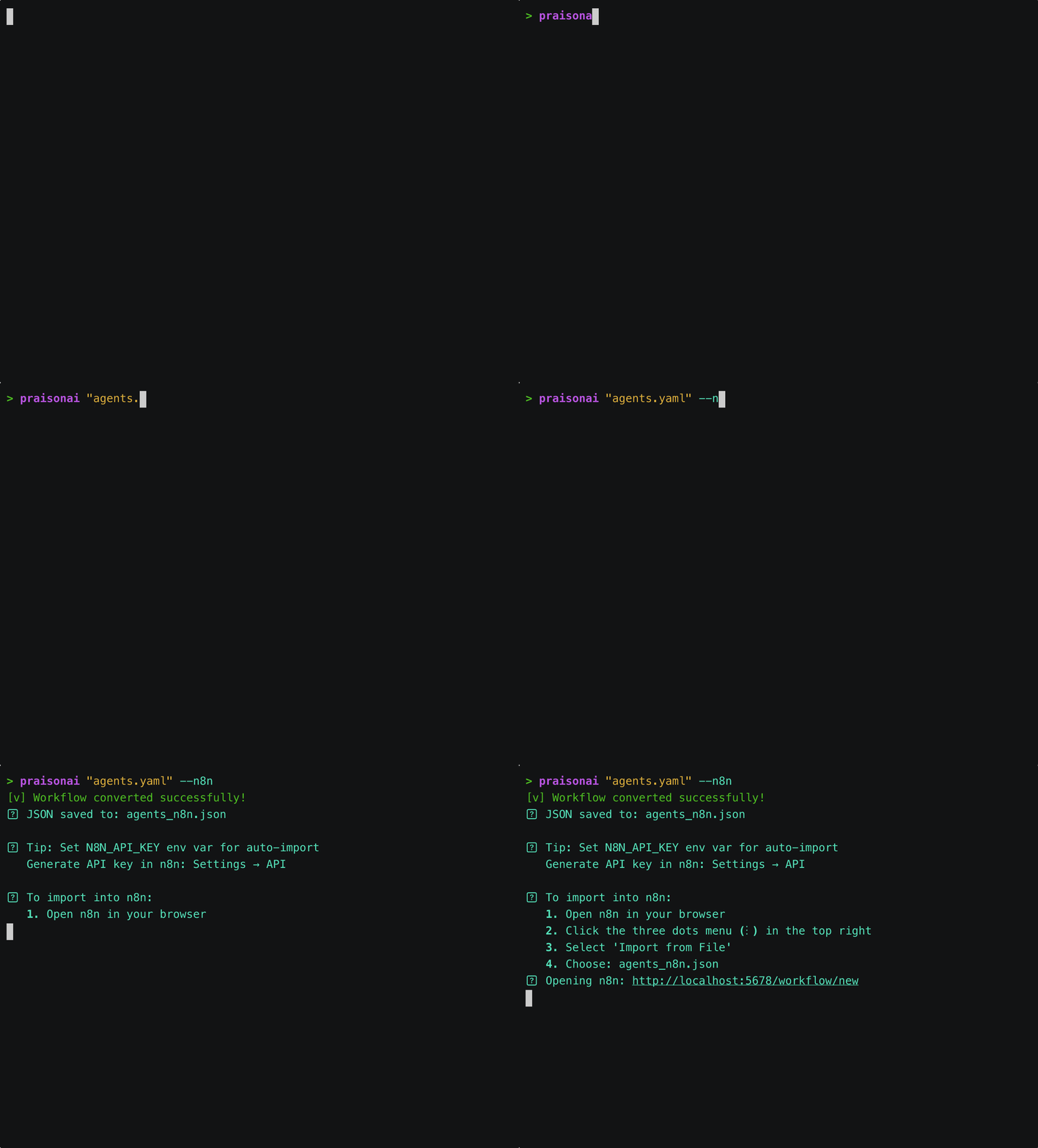
praisonai n8n open agents.yaml— one-step command (recommended)praisonai agents.yaml --n8n— exports + auto-imports via the run flag
Quick Start
- Open (Recommended)
- --n8n Flag
Every agent in your YAML becomes a node in n8n. Sequential steps are
connected automatically. The visual editor opens in your browser.
praisonai n8n open — The Simplest UX
1
Write your YAML workflow
2
Open it in n8n
3
See your workflow
The n8n editor opens automatically with your workflow visualized as
connected HTTP Request nodes — one per agent.
Usage
Basic Export
Auto-Import with API Key
Custom n8n URL
Custom API URL (Cloud/Tunnel)
When n8n is in the cloud and PraisonAI runs locally, use--api-url to specify a tunnel or cloud URL:
Generated Workflow Structure
The n8n workflow includes:Complete Workflow
Step 1: Start the API Server
Step 2: Create n8n Workflow
Step 3: Trigger the Workflow
Getting n8n API Key
- Open n8n UI (http://localhost:5678)
- Go to Settings → API
- Click Create API Key
- Copy the key and set it:
Example agents.yaml
n8n Workflow Features
Webhook Trigger
The workflow uses a webhook trigger for programmatic execution:- Path: Auto-generated from workflow name
- Method: POST
- Response Mode: Returns final agent output
Per-Agent HTTP Nodes
Each agent gets its own HTTP Request node:Data Flow
Use Cases
Visual Workflow
See agent execution flow in n8n’s visual editor
Conditional Logic
Add IF nodes between agents for branching
Integration
Connect to other n8n nodes (Slack, Email, etc.)
Scheduling
Use n8n’s scheduler to run workflows periodically
Advanced: Manual Import
If auto-import fails, manually import the generated JSON:- Run
praisonai agents.yaml --n8n - Open n8n UI
- Click Add Workflow → Import from File
- Select
agents_n8n.json - Click Import